How to Add a Reservation Link to Your Google Business Profile
Get that "Reserve a Table" button showing up when people Google your restaurant.

Simple Host Team
January 5, 2025
You know that little "Reserve a Table" button that shows up on some restaurant listings in Google? That's not automatic. Someone had to set it up. And if you haven't done it for your restaurant yet, you're missing out on bookings from people who are literally searching for you right now.
The good news: it takes about 5 minutes to set up. Here's how.
Before You Start
You need two things:
1. Access to your Google Business Profile. This is the listing that shows up when people search for your restaurant. If you haven't claimed it yet, go to business.google.com and do that first. Google will verify you own the place (usually by sending a postcard or calling you).
2. A reservation page URL. This is where customers will land when they click the button. If you use Simple Host, this is your restaurant's booking link. If you have a reservation form on your website, that works too.
Don't have a reservation page yet? We'll cover that at the end.
Adding the Link (Step by Step)
Head over to business.google.com and sign in.
Step 1: Open your profile
You'll see a list of your businesses. Find the restaurant you want to update and click "See your profile" on the right side.

Step 2: Click Bookings
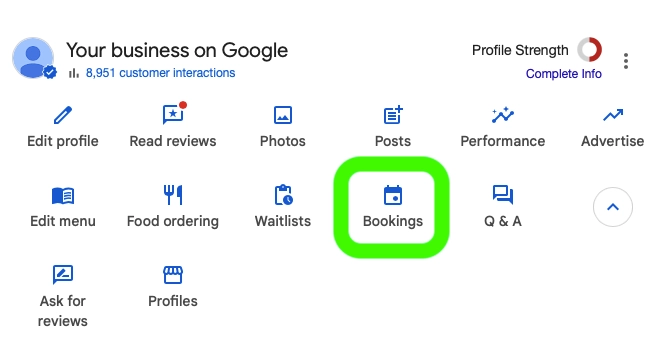
This opens your business dashboard with a bunch of options. Look for "Bookings" in the grid of icons and click it.
Step 3: Add your link
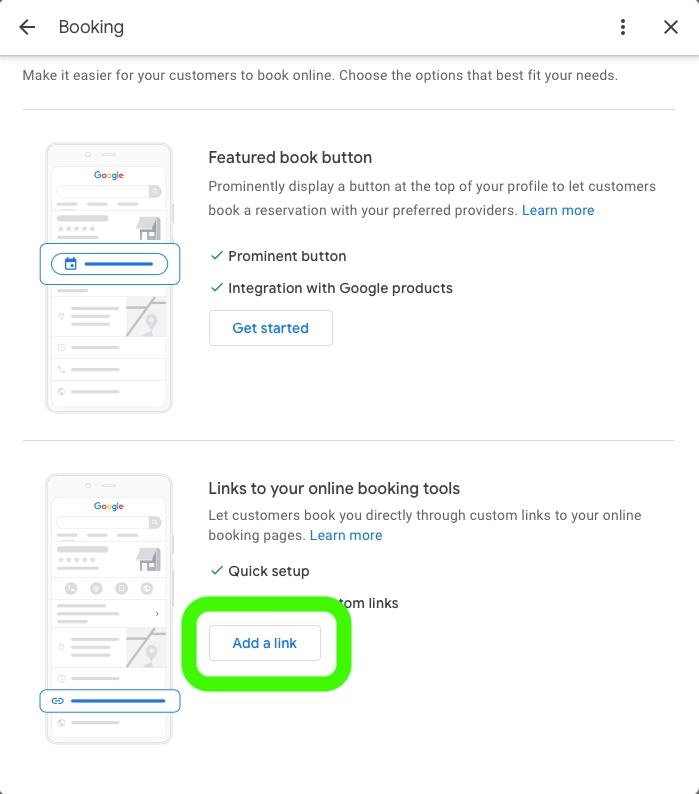
You'll see two options here. The top one ("Featured book button") is for Reserve with Google integrations. You want the second one: "Links to your online booking tools".
Click "Add a link".
Step 4: Paste your URL and save
Paste your reservation page URL. Something like:
Hit Save, and you're done.
Google usually takes a few hours to update your listing, but sometimes it can take up to a day or two. Don't panic if you don't see it immediately.
What If You Can't Find the Reservation Option?
This usually means Google doesn't think you're a restaurant. Check your business category — it should be set to "Restaurant" or something similar (like "Italian Restaurant" or "Sushi Bar"). If you're categorized as something generic, Google won't show restaurant-specific features like reservation links.
To fix this, go to Edit profile → Business category and make sure your primary category is a restaurant type.
Why Bother?
Think about how people find restaurants these days. They Google. They look at photos, check reviews, maybe glance at the menu. And then they want to book.
If there's a "Reserve a Table" button right there, they'll tap it. If there isn't, some will call (annoying during a busy service), some will try to find your website (friction), and some will just... move on to a restaurant that makes it easier.
It's not complicated. It's just about removing one more barrier between "I want to eat there" and "I have a reservation."
What About "Reserve with Google"?
You might have heard about Reserve with Google, which lets people book directly inside Google without leaving to another page. That's a different thing. It requires your reservation system to be officially integrated with Google's booking partners.
What we're talking about here is simpler: just a link that sends people to your booking page. It shows up as a button on your listing and works with any reservation system. No special integration required.
Both work. The link method is just faster to set up.
Don't Have a Reservation Page?
If you're still taking reservations by phone only, you can't really use this feature. You need somewhere to send people.
Simple Host gives you a reservation page you can set up in about 10 minutes. Guests fill out their info, pick a time, and you get the reservation on your iPad or phone. You can use that link for Google, put it on your website, share it on Instagram — wherever.
Simple Host
Waitlist + reservations for $69.99/month. No per-cover fees. Comes with a shareable booking link you can add to Google.
Try it free for 7 daysQuick Recap
Go to business.google.com. Click "See your profile." Click "Bookings." Click "Add a link" under "Links to your online booking tools." Paste your URL. Save. Done.
If you can't find the option, check that your business is categorized as a restaurant.
If you don't have a reservation page, get one. It doesn't have to be fancy — it just has to exist.
That's really all there is to it. Five minutes of setup, and everyone who Googles your restaurant can book a table without picking up the phone.
Common Questions
How long does it take for the link to show up?
Usually a few hours, sometimes up to a day or two. Google has to sync the change across Search and Maps, and that's not instant. If it's been more than 48 hours, try removing the link and adding it again.
Can I use any reservation system?
Yes. As long as you have a URL that leads to a booking page, you can use it. Doesn't matter if it's Simple Host, your own website, or some other platform. Google just needs a link to send people to.
I don't see a reservation option anywhere in my profile. What gives?
Check your business category. If Google doesn't think you're a restaurant, it won't show restaurant-specific features. Go to Edit profile, then look for Business category. Your primary category should be something like "Restaurant," "Italian Restaurant," "Cafe," etc.
Do I need Reserve with Google, or just a regular link?
A regular link is fine for most restaurants. Reserve with Google is a fancier integration where customers can book without leaving Google, but it requires your reservation system to be partnered with them. The link method works with anything and takes five minutes to set up.
Can I change the link later?
Anytime. Just go back to your Business Profile, edit it, swap out the URL, and save. It'll update within a day or so.